![Logo_white-without-background (1).png]](https://help.primetag.com/hs-fs/hubfs/Logo_white-without-background%20(1).png?height=40&name=Logo_white-without-background%20(1).png)
Inside Primetag’s Campaigns section, you can measure the clicks generated by each creator in your campaigns.
To add a trackable link, open one of your campaigns and go to the Links tab. Then click Add link.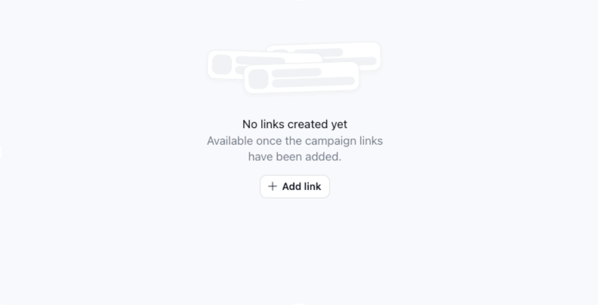
You can add any type of link, whether it’s a direct website URL or a link with added UTMs. Primetag’s tracking system won’t interfere with your internal analytics (Google Analytics or other platforms). After adding the link, you’ll need to assign it to collaborators. You have two options: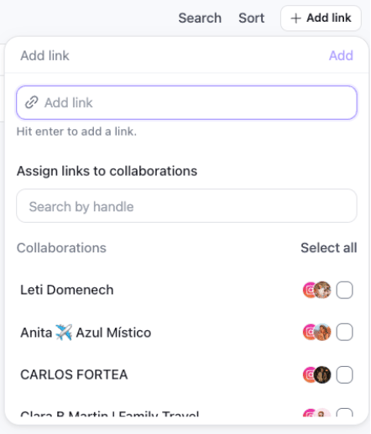
-
Create separate links for each creator – Choose this if you already have different links or UTMs for each collaborator, or if you want each creator to drive traffic to different websites.
-
Create a single link for all creators – Assign all collaborators to the same link, then generate unique versions for each of them. Keep in mind that all links will point to the same destination.
Once a link is added, you can click on it to view all related details:

-
Name of the link – Editable at any time.
-
Original link – The URL you provided.
-
Total clicks – The number of clicks generated by the creator(s).
-
Prime link – The link you must share with the creator(s) to publish on their social profiles as agreed. Hover over the Prime link column to reveal a Copy button, then paste the specific version for each creator.
-
Search and Sort options – Easily locate and organize your links.
-
Add collaborations – Assign additional collaborators from the campaign to generate their own version of the link to share.
When you download the campaign’s Excel report, you’ll find a Links tab containing the performance metrics for each link in the campaign.
If you have any questions or need further assistance, contact our Support team at support@primetag.com. We’re here to help!