![Logo_white-without-background (1).png]](https://help.primetag.com/hs-fs/hubfs/Logo_white-without-background%20(1).png?height=40&name=Logo_white-without-background%20(1).png)
To track online sales generated through your collaboration links, you’ll need to connect your e-commerce store to Primetag. This setup allows you to access detailed performance data, including revenue, number of sales, and products sold.
This process requires technical implementation and may involve your e-commerce or development team.
Please note:
- Each Primetag account can only be connected to one e-commerce store
- If you’re working from an agency account, you’ll only be able to track sales for one client per account
- If you need to track multiple e-commerces, contact your Customer Success Manager to explore available options
Step 1: Choose your integration method
There are three ways to connect your e-commerce store to Primetag. All of them provide the same results, choose the one that best fits your setup:
| Method | Best For |
| Option A - Google Tag Manager | Stores already using GTM |
| Option B - Tracking Pixel | Stores where you can edit HTML templates directly |
| Option C - Server-to-Server | Stores with a backend team that prefers API integrations |
Option A: Google Tag Manager
Google Tag Manager (GTM) allows you to add tracking scripts to your website without modifying its code directly.
With this method, you’ll create a tag that triggers when a purchase is completed and sends order data (such as order value, ID, and product details) to Primetag.
What you need
- Access to your Google Tag Manager container
- A developer or e-commerce specialist to configure the tag
- Your
client_codeand API key (provided by your dedicated Customer Success Manager at Primetag)
👩💻 Technical reference — GTM setup (for developers)
1. Get your credentials
Your Customer Success Manager will provide:
client_codeAPI key
2. Open GTM and create a new tag
Create a new tag in your GTM container:
- Type: Custom HTML or HTTP Request
3. Set the trigger
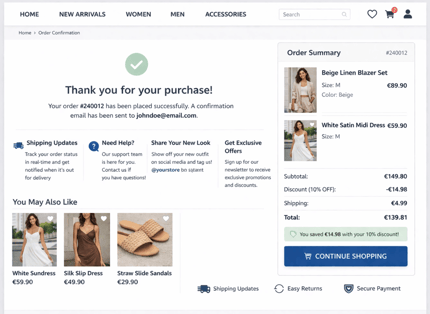
Trigger the tag on the purchase confirmation event, such as:
- A “Thank you” page (e.g.
/checkout/thank-you) - A purchase event in the data layer
4. Configure the request
Send a POST request to https://primetag.com/tracking/ with your order data. See the technical reference below for the full schema and a copy-paste example.
Endpoint
The endpoint for sending sales tracking data is: POST https://primetag.com/tracking/
Request headers
The request must include an X-Api-Key header with the API key provided by Primetag:
X-Api-Key: <your_api_key>
Base Fields
| Field | Type | Description | Required? |
|---|---|---|---|
client_code |
int | A client identifier provided by Primetag | Yes |
sold_products |
list[SaleProduct] | null | List of all product sold and their respective information | No |
order_id |
string | Order identifier | Yes |
sale_value |
decimal with at most 3 decimal places | Final sale value of the order, after discount | Yes |
currency |
string | null | E.g. EUR If the currency is's not sent in the request body, we will assume it to be the one provided to Primetag's Customer Success Manager | No |
coupon_code |
string | null | Discount code (e.g. SAVE15) | No |
ip_address |
string | Buyer's IP address | Yes |
user_agent |
string | Buyer's HTTP User-Agent | Yes |
“Sold Product” Fields (optional)
| Field | Type | Description | Required |
|---|---|---|---|
product_ref |
string | Product reference | Yes |
quantity |
int | Quantity of sold products | Yes |
total_price |
decimal with at most 3 decimal places | null | Final sale value for all units of that product, after discounts | No |
unit_price |
decimal with at most 3 decimal places | null | Sale value of 1 unit of product | No |
display_name |
string | null | Product name / description | No |
Example
{ "client_code": 123, "sold_products": [ { "product_ref": "P100", "quantity": 2, "total_price": 20.00, "unit_price": 10.00, "display_name": "Umbrella PX Black" }, { "product_ref": "P200", "quantity": 1, "total_price": 3.00, "unit_price": 3.00, "display_name": "Hat PX Black" } ], "order_id": "0553432", "sale_value": 33.00, "currency": "EUR", "coupon_code": null, "ip_address": "11.222.33.444", "user_agent": "Mozilla/5.0 (Macintosh; Intel Mac OS X 10_15_7) AppleWebKit/605.1.15 (KHTML, like Gecko) Version/26.0.1 Safari/605.1.15"}
Test example (Python)
import requestsheaders = {"X-Api-Key": "<your_api_key>"}data = { "client_code": 123, "sold_products": [ { "product_ref": "P100", "quantity": 2, "total_price": 20.00, "unit_price": 10.00, "display_name": "Umbrella PX Black" }, { "product_ref": "P200", "quantity": 1, "total_price": 3.00, "unit_price": 3.00, "display_name": "Hat PX Black" } ], "order_id": "0553432", "sale_value": 33.00, "currency": "EUR", "coupon_code": null, "user_agent": client_headers.get("User-Agent"), # Example for websites using Cloudflare as a proxy "ip_address": client_headers.get("CF-Connecting-IP"),}response = requests.post("https://primetag.com/tracking/", headers=headers, json=data)print("OK" if response.status_code == 201 else response.text)
Option B: Tracking Pixel
A tracking pixel is a small invisible image embedded in your website. When the page loads, it sends data to Primetag.
This method requires adding code directly to your store’s HTML.
You will need access to your store's HTML templates to place the tracking pixel.
👩💻 Technical reference — Tracking Pixel setup (for developers)
1. Get your client code
Provided by your Customer Success Manager at Primetag.
2. Add the purchase pixel to your "Thank You" page
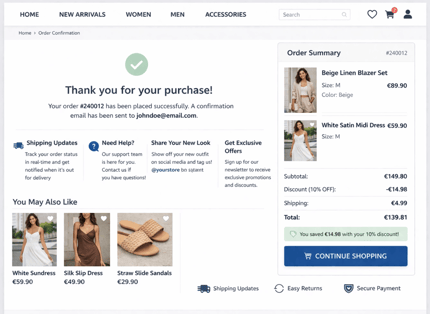
Add this snippet to your order confirmation page:
<img class="primetagpixel" src="//primetag.com/trackbuy.gif?id=123 &order=240012 &total=139.41 ¤cy=EUR &coupon=DISCOUNT15 &products[0].ref=P100 &products[0].total=89.90 &products[0].quantity=1 &products[0].unit=89.90 &products[0].name=Beige Linen Blazer Set" style="display:none" />
Field reference
In products [X], X is the product index number starting at 0, used to differentiate products.
| Field | Type | Description |
|---|---|---|
id |
int | A client identifier provided by Primetag |
order |
string | Order identifier |
total |
decimal with at most 3 decimal places | Final sale value of the order, after discount |
currency |
string | null | E.g. EUR If the currency is's not sent in the request body, we will assume it to be the one provided to Primetag's Customer Success Manager |
coupon |
string | null | Discount code (e.g. SAVE15) |
products[X].name |
string | null | Product name / description |
products[X].quantity |
int (defaults to 1) | Quantity of sold products |
products[X].ref |
string | Product reference |
products[X].total |
decimal with at most 3 decimal places | null | Final sale value for all units of that product, after discounts |
products[X].unit |
decimal with at most 3 decimal places | null | Sale value of 1 unit of product |
Option C: Server-to-Server
With this method, your backend sends purchase data directly to Primetag’s API when an order is completed.
This approach:
- Does not depend on the browser
- Is more robust and reliable
- Requires backend development
👩💻 Technical reference — API setup (for developers)
1. Get your credentials
You’ll need:
client_codeAPI key
Both provided by your dedicated Customer Success Manager at Primetag.
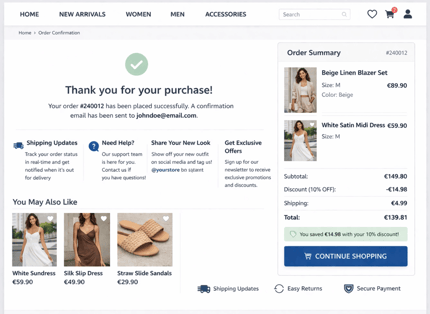
2. Send the API request
At the moment of purchase, send a POST request to:
https://primetag.com/tracking/
with the order details. See the technical reference below for copy-paste examples.
Endpoint
The endpoint for sending sales tracking data is: POST https://primetag.com/tracking/
Headers
The request must include an X-Api-Key header with the API key provided by Primetag.
POST https://primetag.com/tracking/
X-Api-Key: <your_api_key>
Request body
The request body should be a JSON object with the following fields:
Base fields
| Field | Type | Description | Required? |
|---|---|---|---|
client_code |
string or int | A client identifier provided by Primetag | Yes |
sold_products |
list[SaleProduct] | null | List of all product sold and their respective information | No |
order_id |
string | Order identifier | Yes |
sale_value |
decimal with at most 3 decimal places | Final sale value of the order, after discount | Yes |
currency |
string | null | E.g. EUR If the currency is's not sent in the request body, we will assume it to be the one provided to Primetag's Customer Success Manager | No |
coupon_code |
string | null | Discount code (e.g. SAVE15) | No |
ip_address |
string | Buyer's IP address | Yes |
user_agent |
string | Buyer's HTTP User-Agent | Yes |
“Sold Product” Fields (optional)
| Field | Type | Description | Required |
|---|---|---|---|
product_ref |
string | Product reference | Yes |
quantity |
int | Quantity of sold products | Yes |
total_price |
decimal with at most 3 decimal places | null | Final sale value for all units of that product, after discounts | No |
unit_price |
decimal with at most 3 decimal places | null | Sale value of 1 unit of product | No |
display_name |
string | null | Product name / description | No |
Example
{ "client_code": 123, "sold_products": [ { "product_ref": "P100", "quantity": 2, "total_price": 20.00, "unit_price": 10.00, "display_name": "Umbrella PX Black" }, { "product_ref": "P200", "quantity": 1, "total_price": 3.00, "unit_price": 3.00, "display_name": "Hat PX Black" } ], "order_id": "0553432", "sale_value": 33.00, "currency": "EUR", "coupon_code": null, "ip_address": "11.222.33.444", "user_agent": "Mozilla/5.0 (Macintosh; Intel Mac OS X 10_15_7) AppleWebKit/605.1.15 (KHTML, like Gecko) Version/26.0.1 Safari/605.1.15"}
Test example (Python)
import requestsheaders = {"X-Api-Key": "<your_api_key>"}data = { "client_code": 123, "sold_products": [ { "product_ref": "P100", "quantity": 2, "total_price": 20.00, "unit_price": 10.00, "display_name": "Umbrella PX Black" }, { "product_ref": "P200", "quantity": 1, "total_price": 3.00, "unit_price": 3.00, "display_name": "Hat PX Black" } ], "order_id": "0553432", "sale_value": 33.00, "currency": "EUR", "coupon_code": null, "user_agent": client_headers.get("User-Agent"), # Example for websites using Cloudflare as a proxy "ip_address": client_headers.get("CF-Connecting-IP"),}response = requests.post("https://primetag.com/tracking/", headers=headers, json=data)print("OK" if response.status_code == 201 else response.text)
Step 3: Test the integration
After triggering some sales, notify your Primetag Customer Success Manager. Primetag’s Engineering team will confirm Primetag received the sales successfully.
Even for Server-to-Server integrations, a `201` status may not mean the integration is 100% correct.
Need help?
If you have any questions or need assistance with the setup, contact your Customer Success Manager or reach out to our team at:
We’re here to help!