---
title: How to Use Content Explorer
description: Your go-to tool for gathering large-scale influencer content and insights.
---
[Skip to content](https://help.primetag.com/knowledge/how-to-use-content-explorer#main-content)
![Logo\_white-without-background (1).png\]](https://help.primetag.com/hs-fs/hubfs/Logo_white-without-background%20(1).png?height=40&name=Logo_white-without-background%20(1).png)
Open main navigation
Close main navigation
- [Go to primetag.com](https://primetag.com/)
[Go to primetag.com](https://primetag.com/)
How can we help you?
- There are no suggestions because the search field is empty.
1. [Knowledge Base](https://help.primetag.com/knowledge?hsLang=en)
2. [Discovery & Evaluation](https://help.primetag.com/knowledge/discovery-evaluation?hsLang=en)
3. [Content Explorer](https://help.primetag.com/knowledge/discovery-evaluation?hsLang=en#content-explorer)
# How to Use Content Explorer
## Your go-to tool for gathering large-scale influencer content and insights.
With **Content Explorer**, we collect daily posts from Instagram and TikTok, providing you with a comprehensive database to analyze trends, compare markets, and explore what influencers and brands are posting. It's like having a powerful radar within social media!
### Step 1: Choose Your Social Network
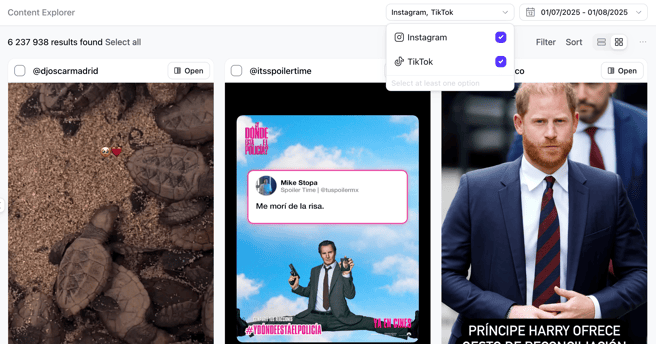
Start by selecting your preferred platform—**Instagram** or **TikTok**—from the top-right corner. You can also choose to display contents from both social networks at the same time. This will give you access to influencer content from our extensive database.
### Step 2: Refine Your Search with Filters
Next to the selected social network, you’ll find the **Dates** filter and the **Filter** button. Use these to fine-tune your search based on content or creator data, as well as publication dates. After adding each filter, click **"Add"** and then **"Apply All"** to implement them.
#### Content Filters
- **Text or Hashtag**: Specific keywords, competitor hashtags, etc. For multiple terms or two-word phrases, use quotation marks (e.g., "beauty", "Milan fashion week").
- **Format**: Target specific content formats like Reels to assess influencer performance in the formats that matter to your campaign.
- **Engagement Rate**: Filter influencers based on their engagement rate.
- **Engagement Range**: Specify a range for total engagements (likes, comments) to find highly interactive influencers.
- **Sponsored Only**: Identify influencers collaborating with competitors by focusing on sponsored content.
#### Creator Filters
- **Followers Range**: Specify a follower count to find influencers suited to your campaign’s audience size.
- **Location**: Filter by influencer country to meet your campaign objectives.
- **Handle**: Search directly for a specific influencer’s content.
If any of the creators you filter were not previously in the Content Explorer database, they will be automatically added once you search for them. A pop-up message will appear at the bottom-right corner confirming that the creator(s) were added and that Primetag will begin collecting their content from that moment forward.
Regarding historical data, Primetag will only be able to track past in-feed posts. Instagram Stories will only be retrieved from the moment the creator is added to the database.
- **Brand Mention**: See if influencers have mentioned your brand or competitors. This helps identify potential collaborations.
#### Brand Filters
- **Mention**: Search for pieces of content mentioning an specific brand handle.
- **Keyword**: Search for pieces of content including an specific brand on their captions.
- **Hashtag**: Search for pieces of content adding an specific brand hashtag.
When using two different filters (e.g., Content Filter + Brand Filter), the platform defaults to an "AND" search, showing content that matches both filters.
If using one filter with multiple elements (e.g., two hashtags), the search defaults to "OR."
### Step 3: Explore and Export Search Results
You’ll see all applied filters and the total number of search results at the top of the page. Adjust filters as needed to refine your results.
To export your results:
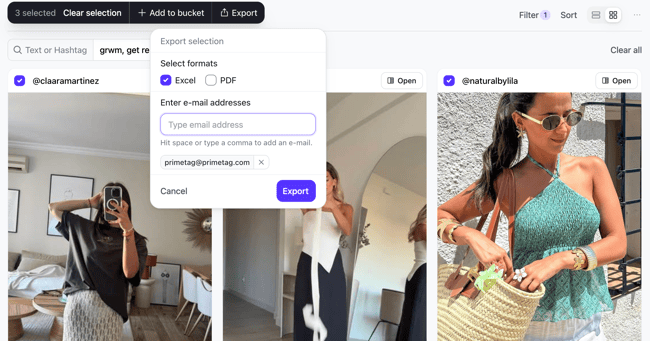
- Select individual profiles or use the checkbox to select all.
- Enter your email to receive an export of the selected profiles, ready for further analysis or sharing with your team.
### Step 4: Create Buckets to Save Content
Want to save specific content? Use our **Bucket** tool to store and organize pieces of content.
1. Go to the **Buckets** tab and click **"Create New Bucket"**. Name your bucket.
2. Start a new search in Content Explorer.
3. Select the content you want to save by clicking the checkbox next to each piece.
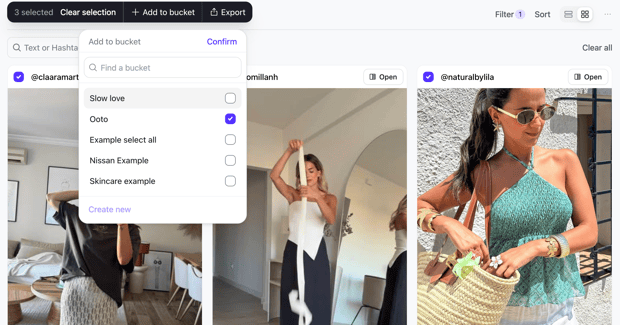
4. A black bar will appear with the option **"Add to Bucket"**. Choose the bucket you created, and the content will be saved!
Keep in mind that Content Explorer is based on publicly available data. Primetag gathers and displays public metrics, such as engagements, engagement rates, and Reels plays, in the software and your exports. However, it cannot access private insights like reach. For private metrics, Primetag provides estimates based on real data from the Campaigns section, where influencers actively register and connect their social media accounts.
Finally, if you would like to add more influencers to Content Explorer or verify whether Primetag is already tracking their content, simply filter by their username using the **Handle** option under Creator Filters, as if you were searching for their content.
If you need further details about this topic or you're unable to find specific content from an influencer, don't hesitate to reach out to our Support team at **support@primetag.com**. We're here to help!
- [Primetag Basics](https://help.primetag.com/knowledge/primetag-basics?hsLang=en)
- [Discovery & Evaluation](https://help.primetag.com/knowledge/discovery-evaluation?hsLang=en#main-content)
- [Discover](https://help.primetag.com/knowledge/discovery-evaluation?hsLang=en#discover)
- [Search by Handle](https://help.primetag.com/knowledge/discovery-evaluation?hsLang=en#search-by-handle)
- [Content Explorer](https://help.primetag.com/knowledge/discovery-evaluation?hsLang=en#content-explorer)
- [Audience Overlap](https://help.primetag.com/knowledge/discovery-evaluation?hsLang=en#audience-overlap)
- [Tracking & Reporting](https://help.primetag.com/knowledge/tracking-reporting?hsLang=en#main-content)
- [Create your campaign](https://help.primetag.com/knowledge/tracking-reporting?hsLang=en#create-your-campaign)
- [Analyze the results](https://help.primetag.com/knowledge/tracking-reporting?hsLang=en#analyze-the-results)
- [Technical Integrations](https://help.primetag.com/knowledge/tracking-reporting?hsLang=en#technical-integrations)
- [Primetag's AI agent: Universe](https://help.primetag.com/knowledge/primetags-ai-agent-universe?hsLang=en#main-content)
- [Universe Basics](https://help.primetag.com/knowledge/primetags-ai-agent-universe?hsLang=en#universe-basics)
- [Universe for Brands](https://help.primetag.com/knowledge/primetags-ai-agent-universe?hsLang=en#universe-for-brands)
- [Universe for Agencies](https://help.primetag.com/knowledge/primetags-ai-agent-universe?hsLang=en#universe-for-agencies)
- [Universe for Talent Agencies](https://help.primetag.com/knowledge/primetags-ai-agent-universe?hsLang=en#universe-for-talent-agencies)
- [Primetag for creators](https://help.primetag.com/knowledge/primetag-for-creators?hsLang=en)
[%20(1).png?width=119&height=24&name=Logomark%20(1)%20(1).png "Chill listening crop-3")](http://www.primetag.net)
Copyright © 2025, Primetag